
Words: 4261
Time to read: 23 minutes

I’ve heard from more than one person that they are kind of intimidated by IS, usually because they’ve heard horror stories of other people using it, or more accurately, trying to use it. Honestly, yeah, the platform can be a bit glitchy, but it’s nothing so scary that I would stop putting my books on it. I realized Faking Forever isn’t up on IngramSpark, though I did publish it last summer, I think, so I can use that title as a tutorial. I’ll screenshot my process and hopefully it will take some of the mystery out of the platform.
There are a couple of things I want to tell you before we get started, and these really aren’t anything I would expect a new author to know.
The first is ISBNs. You need one of your own to publish on IngramSpark IF you are also going to publish separately on KDP, and you should publish direct whenever you can. Amazon won’t take an ISBN issued by IngramSpark, and the same is true vice versa. If you’re in the States and buy from Bowker, you can use the same ISBN both places.
Second. Now, some people have said that you CAN’T use the same ISBN both places because either one place or the other will tell you the ISBN is already in use and you can’t use it. I get around this by publishing to KDP first using an ISBN I buy from Bowker, and then I wait for a couple of months for that ISBN to “click in.” Then when I publish on IngramSpark, they’ll skip Amazon because my book is already listed there. I don’t know where I heard this from, but I have done it this way for over 10 books and I have never gotten an error from either platform saying my ISBN is in use. You’ll have to decide if you want to wait those couple of months. Paperback sales aren’t a big deal to me so I don’t mind having my paperbacks only on Amazon for a while if it’s going to make the process smoother. Long story short: your paperback book should only have one ISBN attached to it.
In the first point, I said go direct whenever you can, and you should do that for a few reasons. The first is that Amazon doesn’t play well with others, so if you use IngramSpark to distribute to Amazon, Amazon can (and will) mark your book out of stock, which is a pain to fix. I would rather be writing my next book than policing my buy-page. Another is an author was complaining because she let IngramSpark distribute to Amazon, and she lost her buy-button, which means she’s not the primary choice for the sale. That’s bad because it looks like you’re not the seller. You can’t stop third-party sellers from buying your book and reselling it, but you always want to be the primary seller. The last point is you don’t want to pay IngramSpark to distribute and then pay Amazon for selling it. There is very little by way of royalties as it is, so just cut out the middleman and publish to KDP directly.
One last thing–your cover will be different than the one you use to upload to KDP. IngramSpark uses a different weight of paper which makes the spines thinner. If you use something like Canva, this is easy–just duplicate your KDP cover, download the IngramSpark template, and adjust spine text size and re-center your title and author name on the front cover. I go over this in my full paperback wrap tutorial. Those will need to be adjusted because due to the thinner spine, your front cover is “bigger” if that makes sense. If you’re using a cover designer, they should already know this, and if they don’t… [insert grimacing emoji here].
Draft2Digital uses IngramSpark’s POD to print. I helped a friend not long ago and one tip I learned is that D2D doesn’t like the barcode box on the back of a paperback cover, and you can, in fact, skip putting the white box on all three platforms. They’ll add the barcode for you, or use a barcode generator like Dave Chesson’s and add it yourself. But that was a handy tip we learned, and if you don’t want to supply your own barcode, leave the white box off completely and let them add it for you… unless you want Barnes and Noble to carry your book. Then you have to embed the price into your barcode. If you do that, you can’t change the price of your book unless you change the barcode too. IngramSpark wants the price on your cover to match what you’re selling your book for. If you want/need to increase the price, keep that in mind. I have stopped putting the price on my books and let both KDP and IngramSpark supply my barcodes. Much easier that way, but I don’t care about Barnes and Noble stocking my book, either. That’s a choice you’re going to have to make.
If you need the cover template generator, you can find it here: https://myaccount.ingramspark.com/Portal/Tools/CoverTemplateGenerator
[The last time I tried that link, it took three days for them to send the template. Use the one from Lightning Source instead. It’s the same one: https://myaccount.lightningsource.com/Portal/Tools/CoverTemplateGenerator]
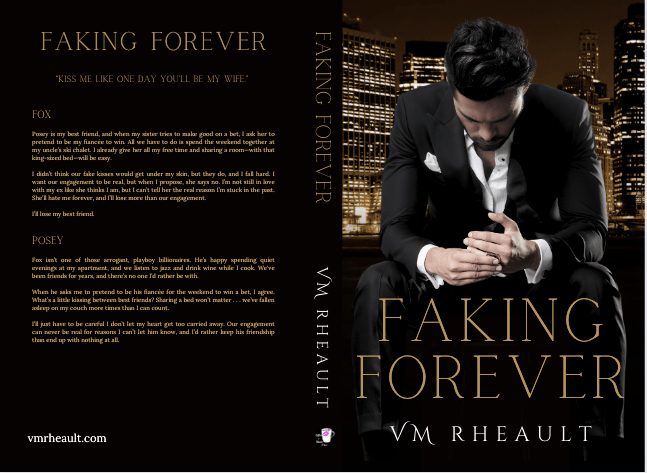
Here is the cover to Faking Forever that I’m going to be using:
And if you’re curious, this is how it looks with the IS template on top of it:
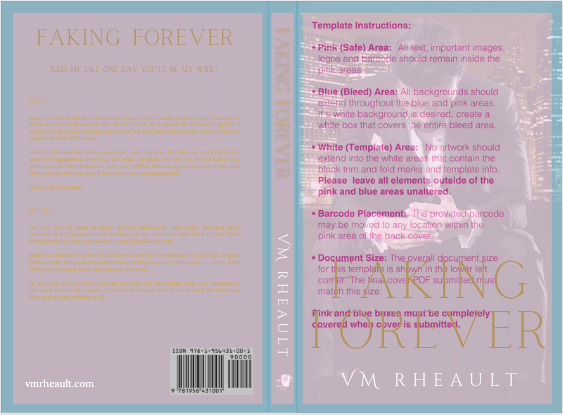
You’ll notice that the template has a barcode already included, but I never use it. It’s too big of a pain to cut it out and add it to the cover. I build over it and call it a day.
Once you have your formatted interior file, your cover sorted, and you know what you’re going to do with your ISBN and where and when you’re going to publish your book, you’re ready to upload to IngramSpark.
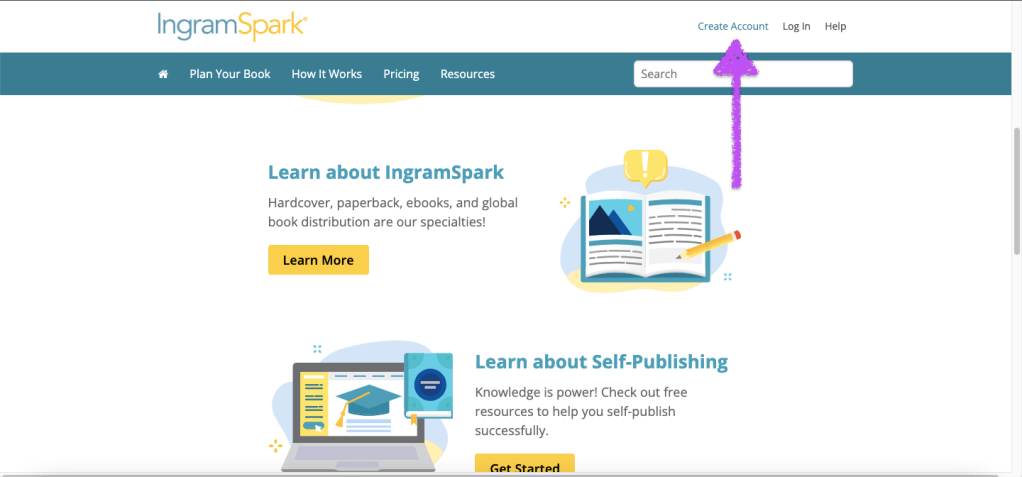
The first thing you have to do is create an account if you don’t have one. Go to www.ingramspark.com and click create account. It’s been a very long time since I’ve done that, but it’s more than just being able to upload your book. You have to have your banking information ready so you can have your royalties deposited and any fees deducted. If I remember correctly, they may ask you for a tax ID number or an EIN but I don’t have an LLC and just used my SSN. I’m in the States, so I don’t know how it works in other countries. I’m not going to give business advice, so beyond showing you how to upload your book, all the other choices that you have to make you’ll need to research on your own.
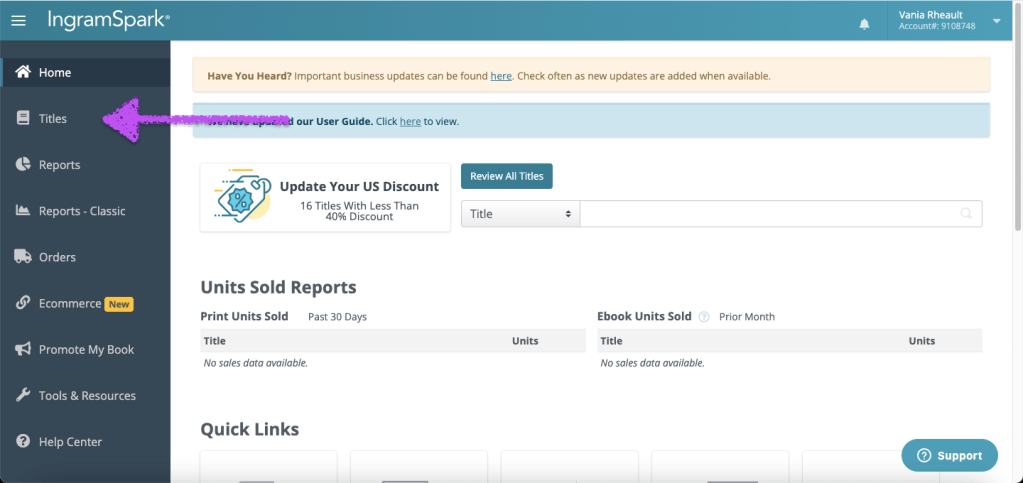
Once you’ve created an account, your home screen should look like this:
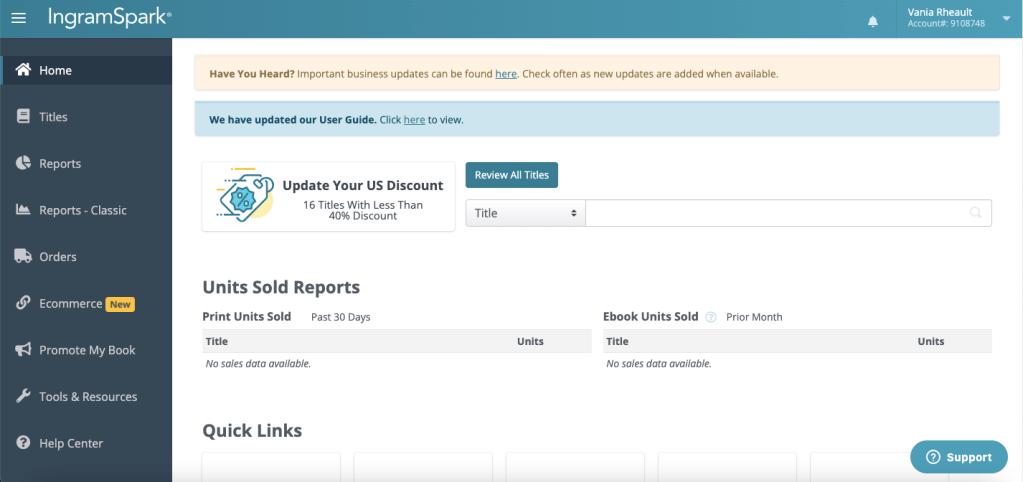
Click on Titles on the left hand side in the menu.
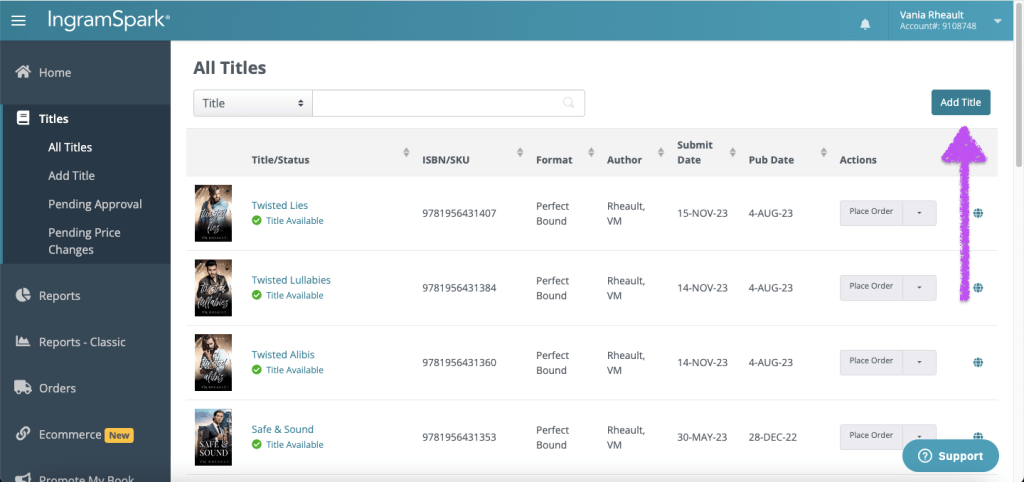
Then click on Add Title.
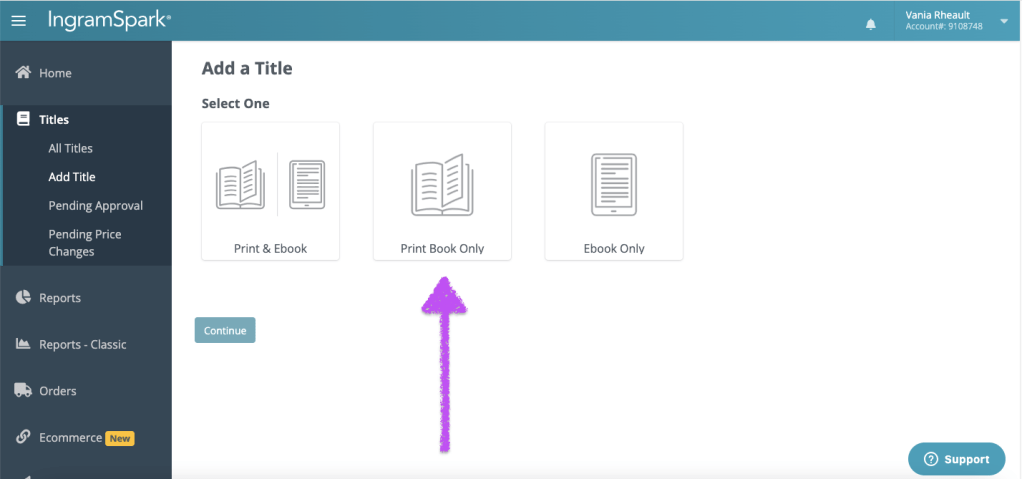
Some people use IngramSpark to distribute their ebooks and their print books. I wouldn’t use them for ebooks–if you’re going wide, Draft2Digital is probably the better choice, and as always, with print and ebooks, go direct whenever you can. You’ll always earn more royalties. Click whichever one you want, but for this blog post I clicked on Print Book Only.
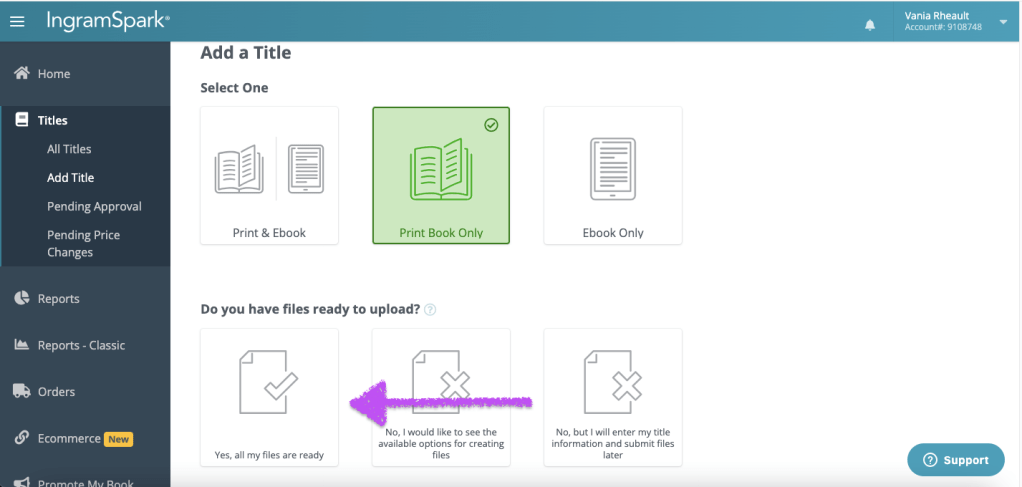
Are all your files ready? You’ll need your interior and your cover that was adjusted/made using the IngramSpark template. But you’ll also need your ISBN, your blurb, and your categories and keywords. If you’re ready, Click Yes, all my files are ready.
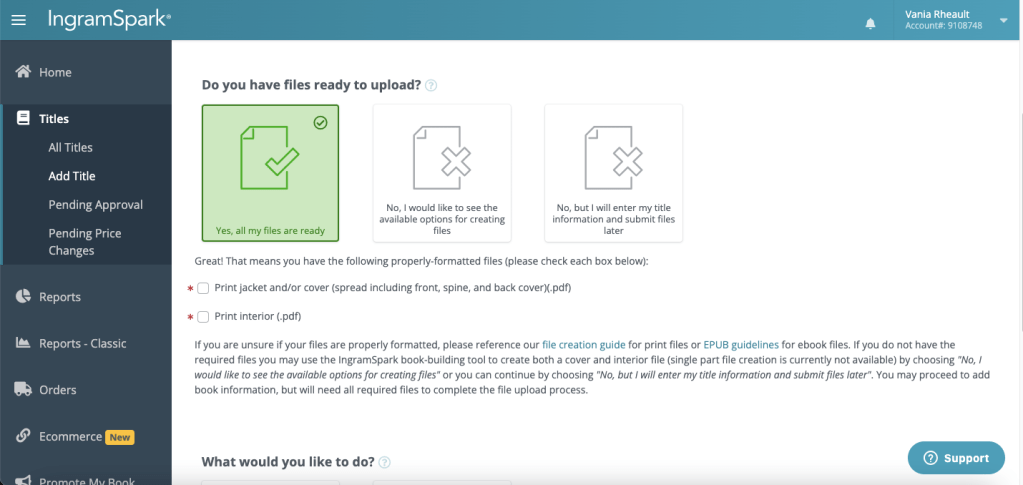
They really wanna make sure you have what you need, so click the boxes that confirm you have your paperback cover wrap and your formatted interior file.
Then click on what you want to do. I do want to print, distribute, and sell my book. Click it to highlight it and then press Continue.
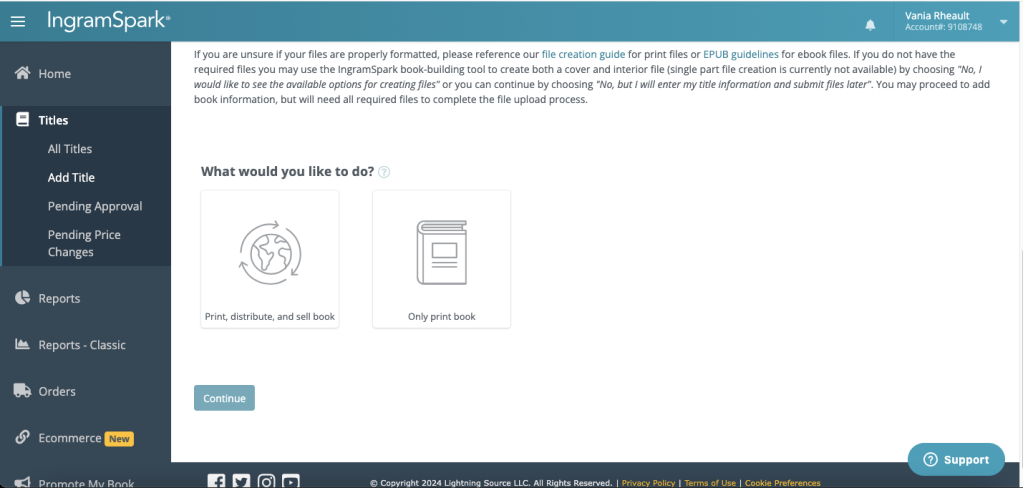
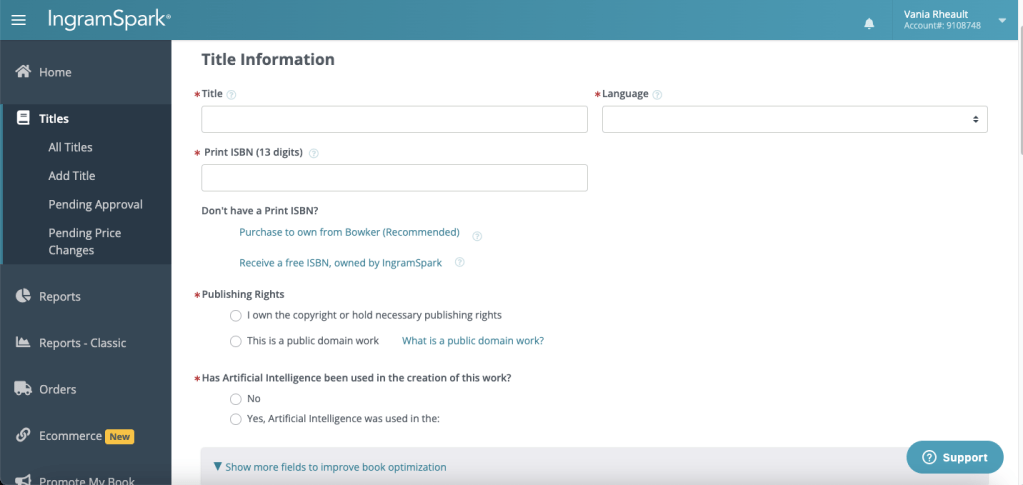
This is where you start filling out your book’s information. Put in your title, the language, which for me is always English, add your ISBN number or take the free one. Click that you own your copyright, and that you’re not trying to publish public domain work. When you click that you own your copyright, a warning box pops up:
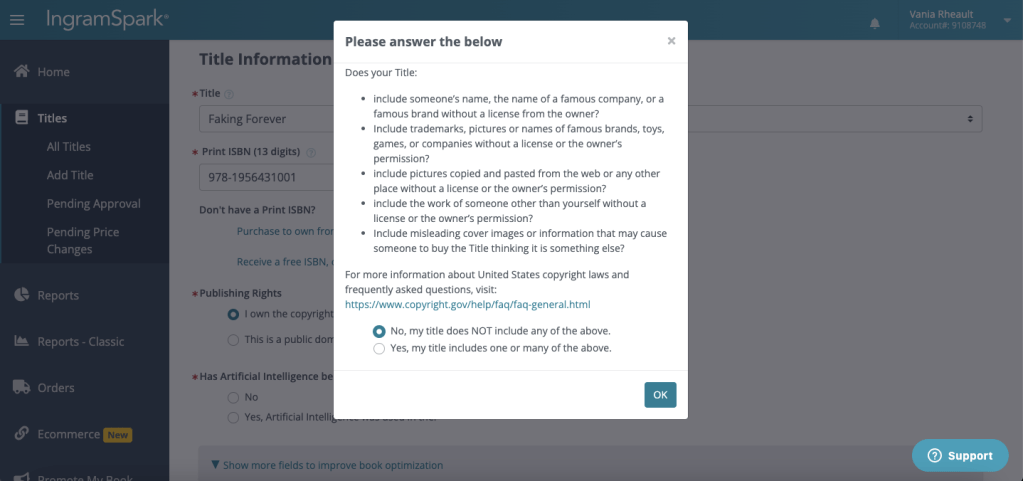
They started adding this box a couple of years ago, and if you click Yes, that your book includes names of famous people or brands, IngramSpark won’t let you publish. I don’t know why they implemented this because we all know it’s okay to say your characters ate lunch at Dairy Queen, or that your male character’s favorite brand of shoes is Nike. It’s pretty much understood that as long as you’re not saying anything derogatory about a brand, it’s fine to mention them. My characters, for whatever reason, love Apple products, and they’re always using their iPhones. So, I’m not saying to lie, but I am saying that if you check the box that you do mention McDonald’s or that your characters go shopping at Walmart, IngramSpark will tell you to amend your book and resubmit. I’ll let you make the choice. I don’t remember what Faking Forever has in it. My characters live in a fake Minnesota city and I think for the most part everything I mentioned brand-wise was made up. But, you do you, and I’ll do me, and for the sake of this blogpost, I’m going to click No and keep going.
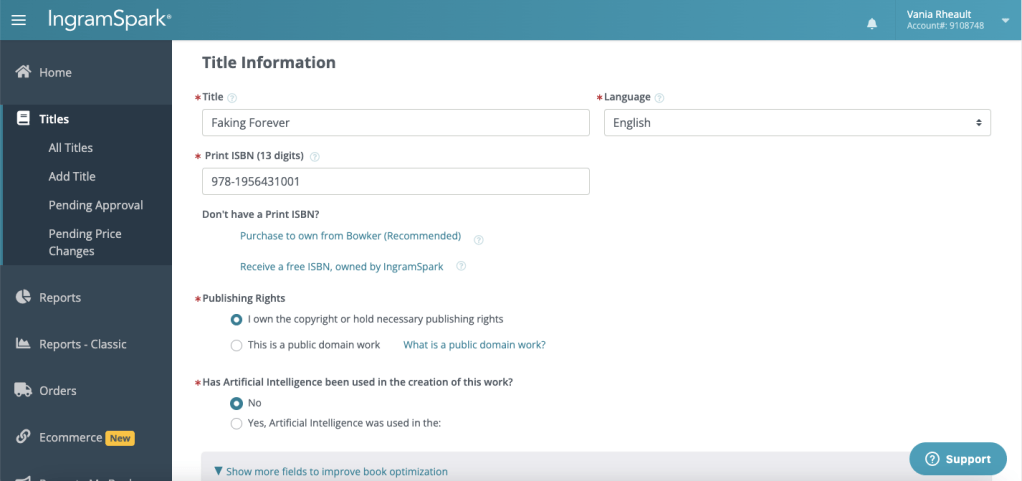
The last question in this section is about AI, and I never use it. I do my own covers using stock that’s not AI generated, and I write my own books. If you use AI in any way, you’ll have to fill out what they ask. I’m not even going to bother to click on Yes and find out what they want. I’ll never use AI and don’t care.
In this next section, you fill out your author name. I don’t have any other contributors, like maybe if you were a children’s author and needed to list an illustrator.
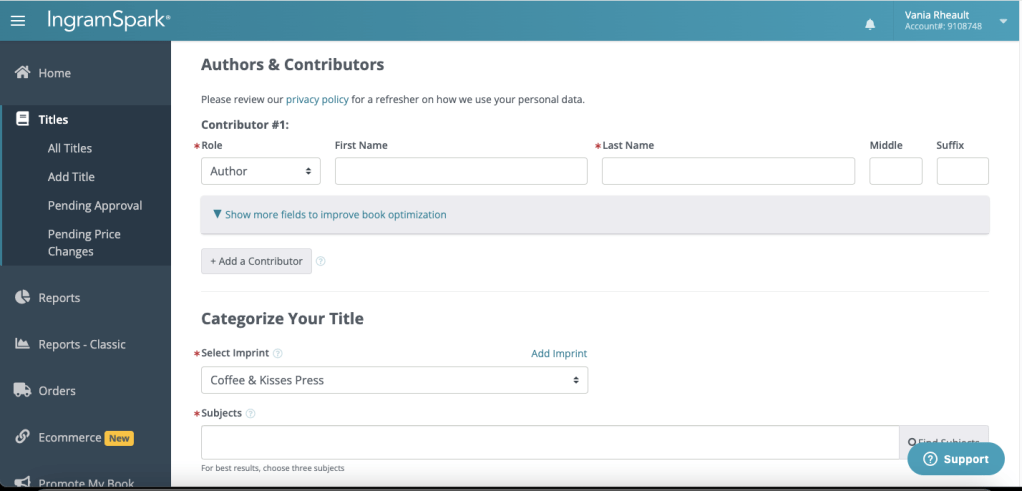
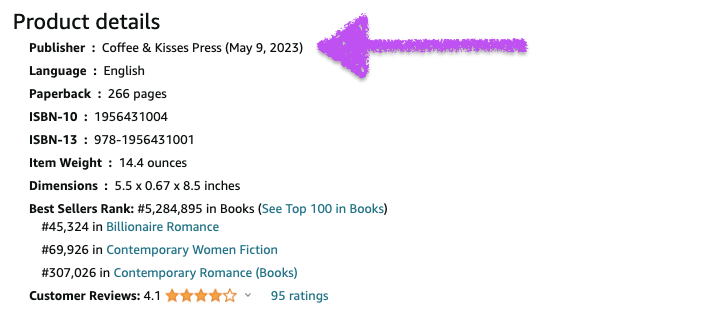
You’ll also see here that my imprint, Coffee & Kisses Press popped up. That’s because when you buy ISBNs from Bowker, you’re able to create an imprint for yourself. Back when I first started publishing, I created my imprint, and my ex-fiancé and my son designed the logo for it. I’ve been publishing under Coffee & Kisses Press for years and years but I don’t have any plans to publish anyone else at this time. I help a lot of people but never for money or a share of their royalties. Jane Friedman has a good article about creating your own imprint if you’re interested in the pros and cons. https://janefriedman.com/why-self-publishing-authors-should-consider-establishing-their-own-imprint/ Also when you create your own imprint, your imprint will be the publisher on Amazon and other product pages. Here is the information on Amazon for Faking Forever:
This is my product information for Rescue Me on Walmart.com.

You can read and research all day about imprints, but I’ll stop there and continue on.
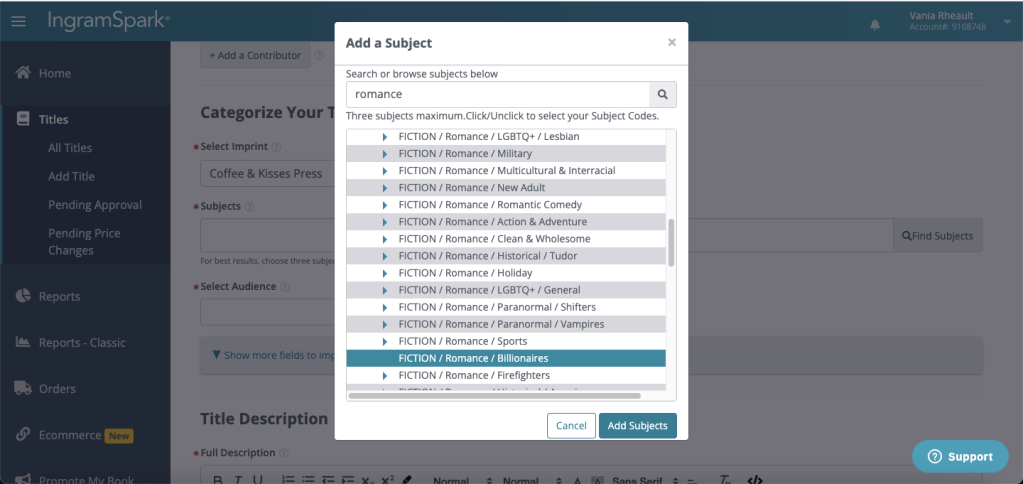
Subjects are your categories. Mine are usually Contemporary Romance and Billionaire, but they have a Rockstar category too, which I used when I published my last trilogy. Click on Find Subjects and search for your category/genre. I recommend using the search bar and typing in what you want. If you only scroll, sometimes you can miss what you’re looking for.
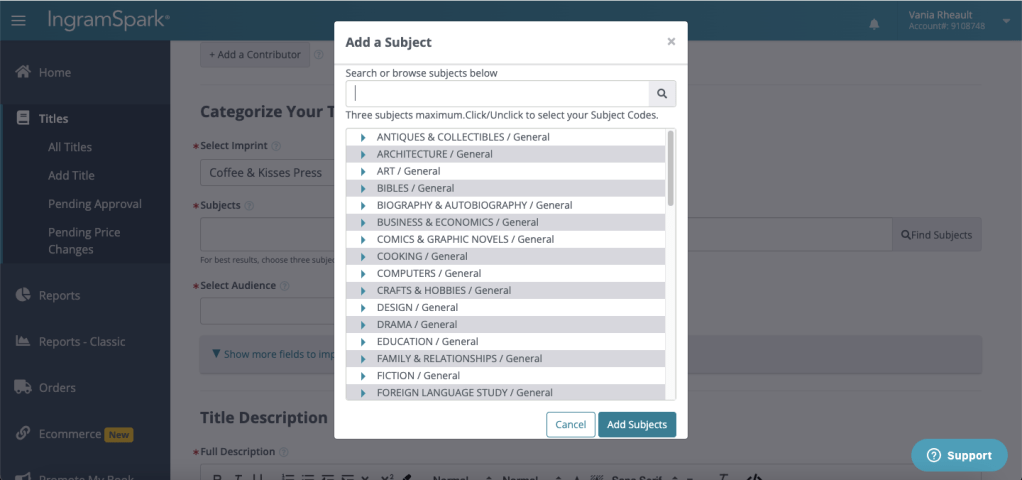
Click and highlight what you want and click Add Subjects.
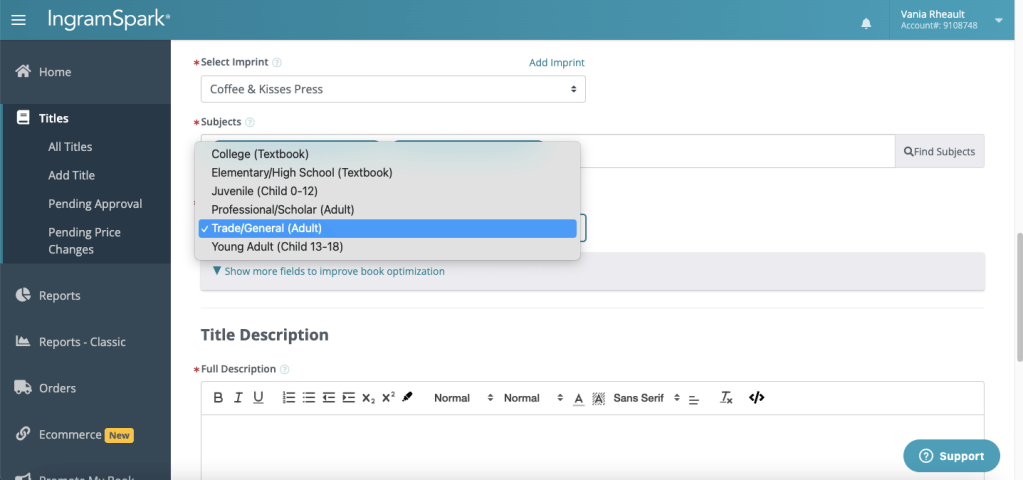
Select Audience is next, and if you’re writing genre fiction for adults, that’s Trade/Adult General.
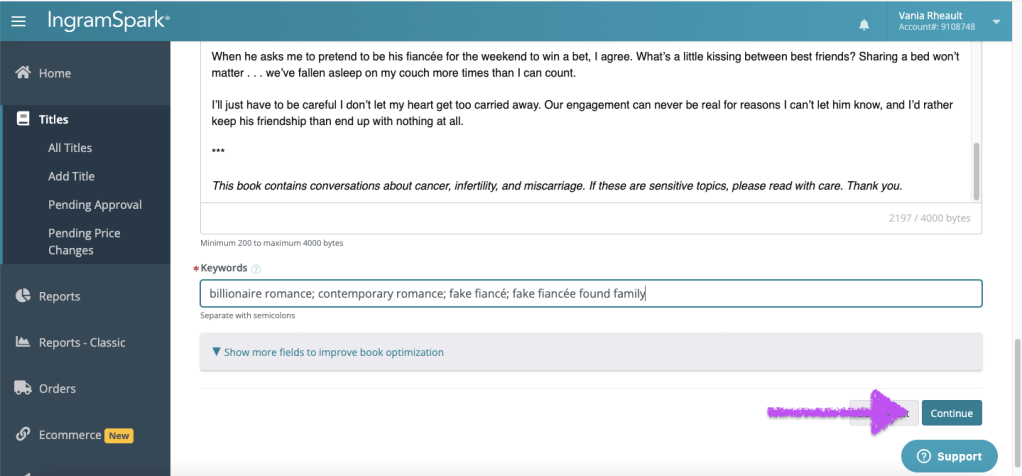
The next field is where your blurb goes. I usually just copy and paste it from my Amazon product page.
The keywords are similar to the seven fields on KDP you fill out when you publish on Amazon. The ones I fill out on KDP are a little different because I add KU/ Kindle Unlimited to some of the fields for discoverability, and you don’t need that for paperbacks on IngramSpark. When you’re done, scroll down and click Continue.
The next section is Print Information. You should already know the trim size of your book since you have your formatted interior file and your cover. If you’ve already published on KDP, all this information should match what you put on that platform. Things like trim size and color of the pages are attached to your ISBN, so make the same selections you did on KDP.
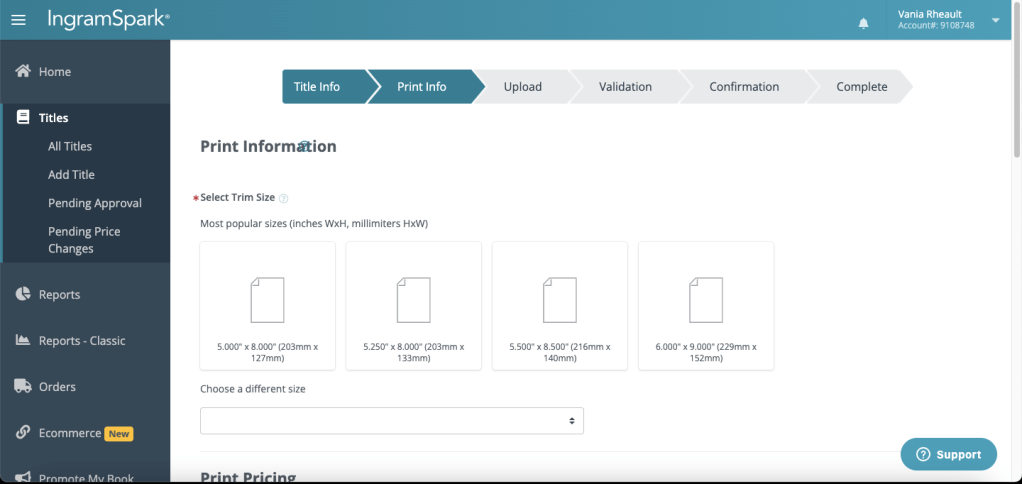
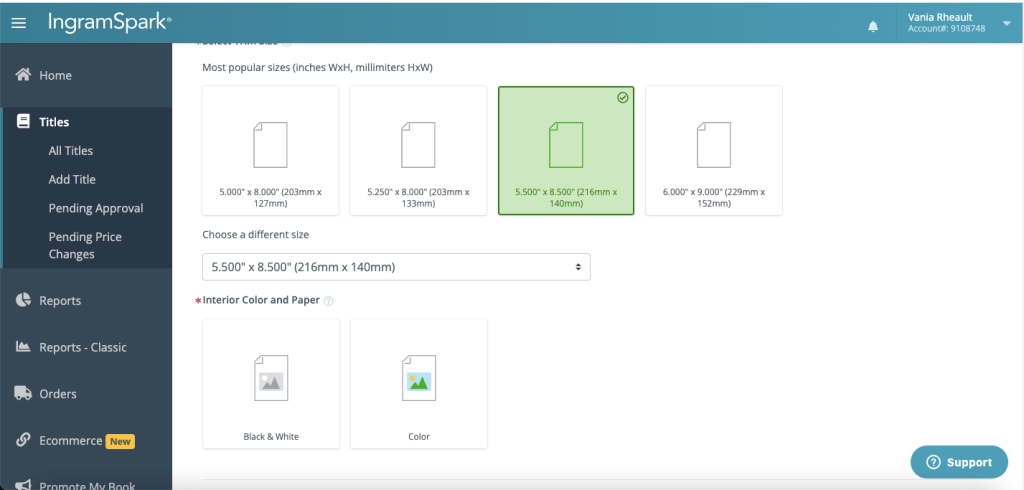
Colored pages are only for things like cookbooks or children’s books. There’s a higher cost to printing color, and I was even seeing some talk the other day that IngramSpark is going to start charging you more if your book has black pages. Beautifully formatted books are having a moment, but all that ink… even if you’re printing in black and white it’s going to cost you money. I don’t get too crazy with my interiors. I’m just not excited about paperbacks in general, so the last thing I really care about is black pages that have white text. As I’ve said, that’s your personal choice, but everything costs so be prepared to up your price to have even the slightest royalty per book.
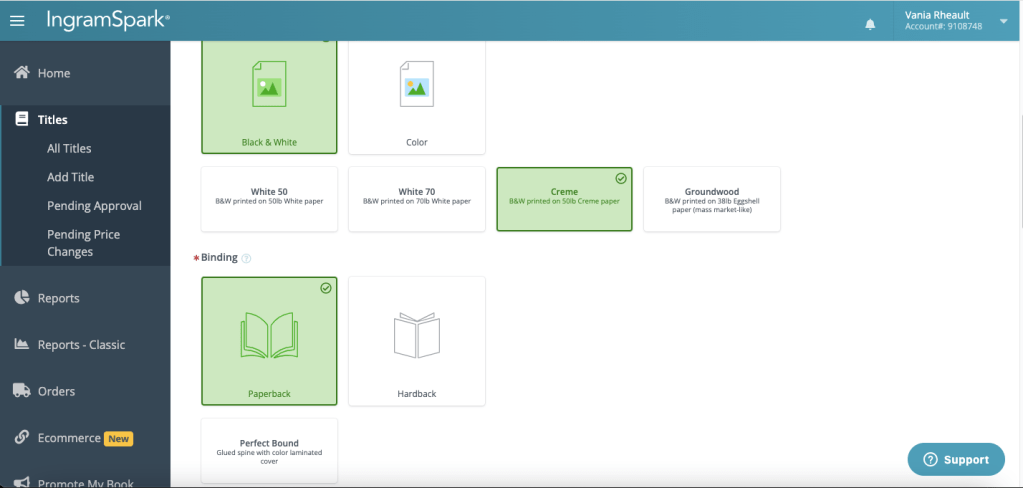
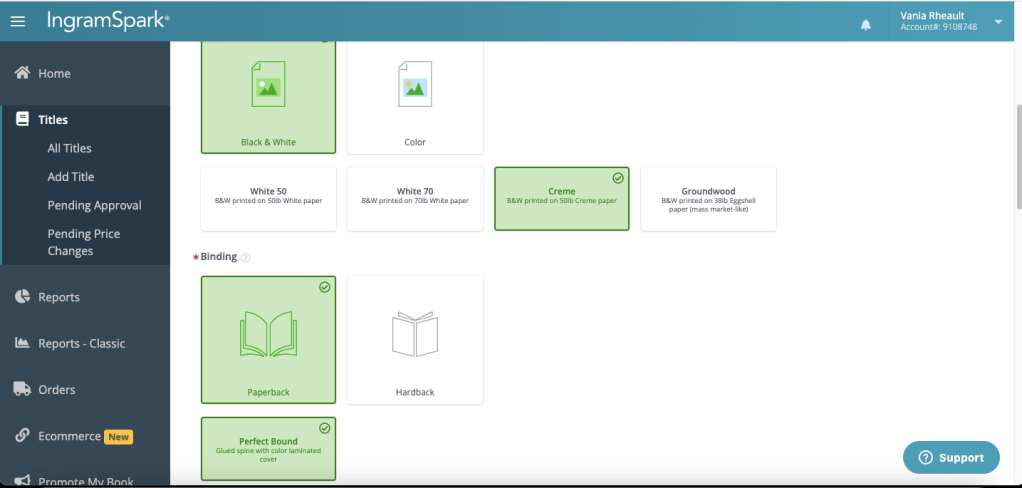
This is part of what can trip up some authors who upload their books. I chose black and white pages, and cream because I also print my fiction books on cream paper. I don’t know if Amazon gives you a choice to print on Groundwood, but if you can’t over there, you can’t here because remember, the color of your pages is attached to the ISBN and you can’t change unless you unpublish.
I chose paperback here, but do you see the Perfect Bound option? Even if it’s the only option there, you still have to click on it and turn it green. Some authors get tripped up by that, so be sure to click on it.
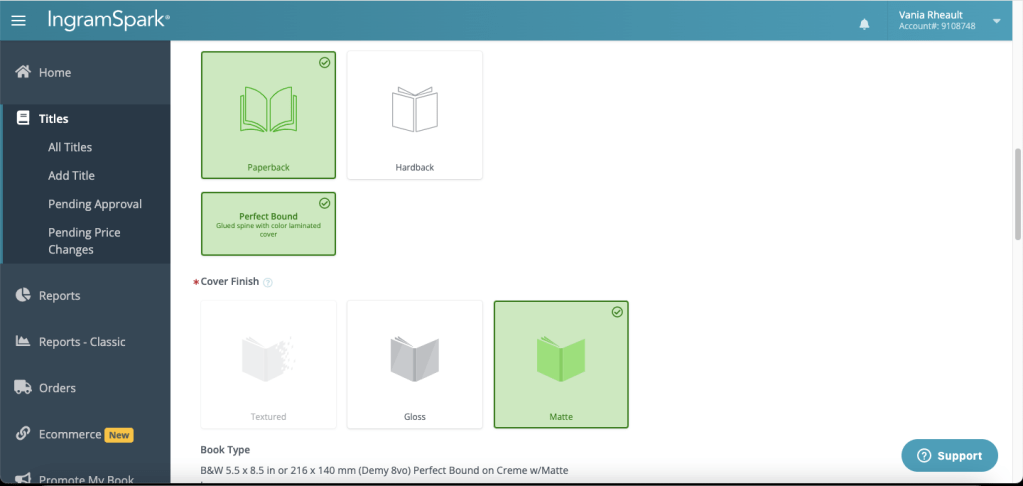
I always choose a matte cover. I’ve seen glossy covers that peel and I don’t like them. Covers can be changed and upon a quick Google search I’m confident to say that if you want to change from glossy to matte or vice versa, you can as the type of cover isn’t attached to the ISBN.
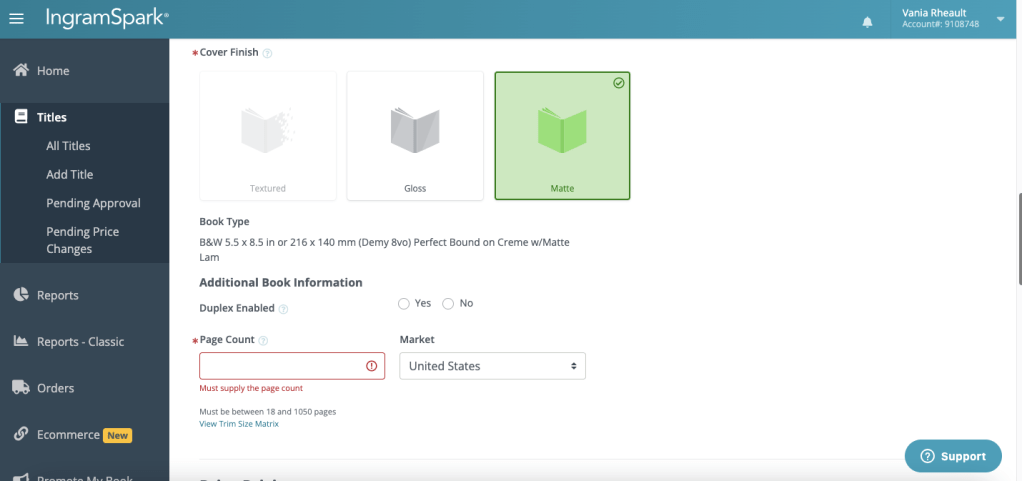
I don’t know what Duplex Enabled means, and since there’s not an asterisk by it, I’ll skip it. Number of pages–you can look at your interior file (you should already know this because either you or your cover designer needed this information) or I snag mine off my Amazon product page.
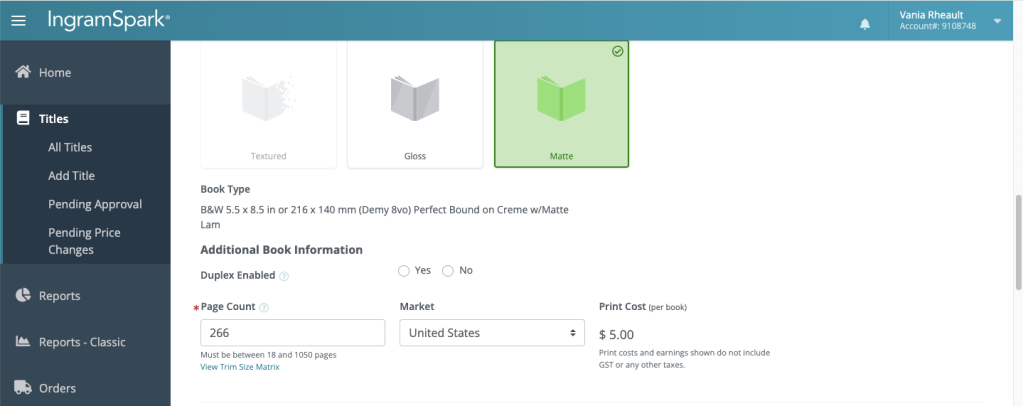
Print pricing is next, and there’s a lot to say on topic, but on the same token, nothing at all. What you choose for pricing, discounts, and if you’re going to allow returns is going to be a personal choice based on what you want for your business and how much you want to make per copy per sale.
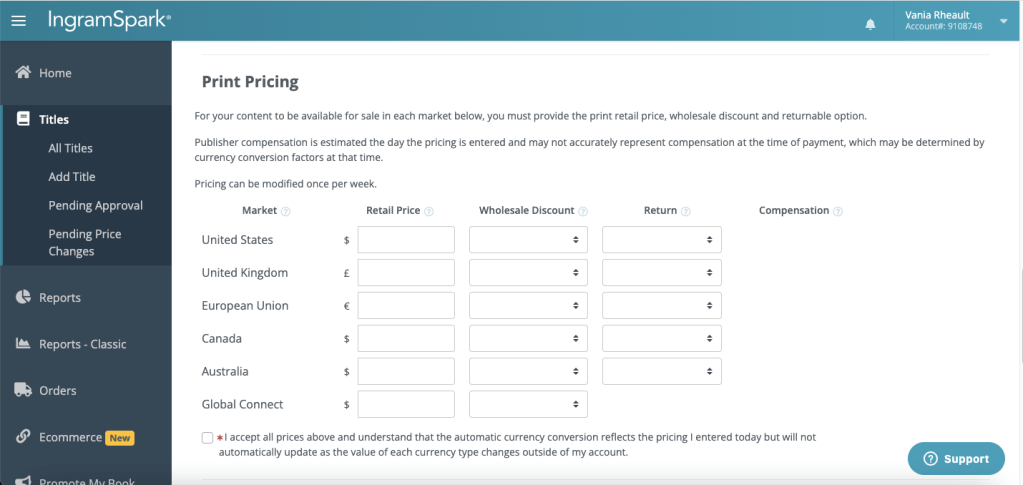
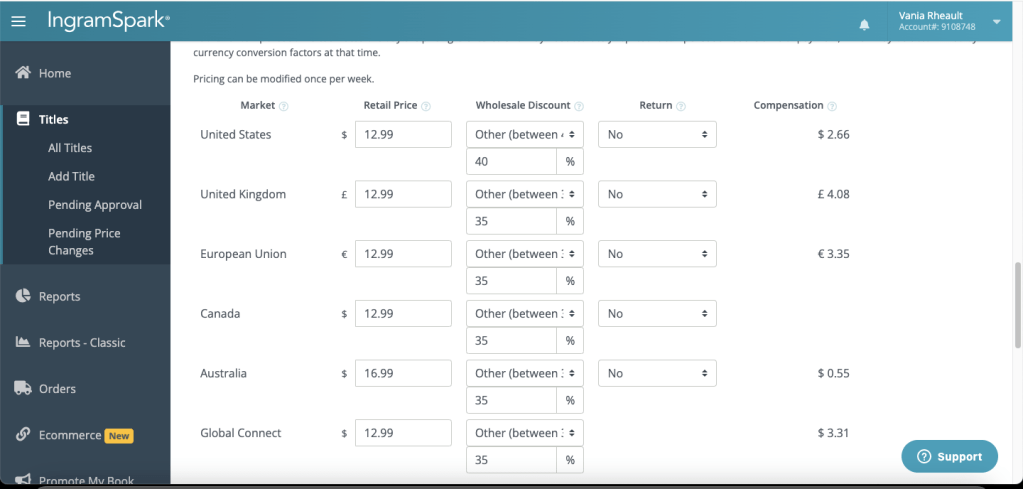
I don’t offer paperbacks to make money, and I don’t even print through IngramSpark to be in bookstores. Honestly, I have no idea why I print through IngramSpark. Faking Forever is $12.99, and I do a 35-40% discount and I don’t allow returns. That’s what I do, but you’ll have to research for yourself. I choose a 35% in the countries I can because that’s what Robin Cutler (who created the indie side of IngramSpark many years ago) recommended, and I never stopped. Here are my fields filled out. You can see I dropped Australia’s price as low as I could. Actually, I could have made one cent if I chose to sell my book for $15.99 instead of $16.99. Book prices there are crazy, and I’m happy for the .55 if it means someone there can afford to buy my book.
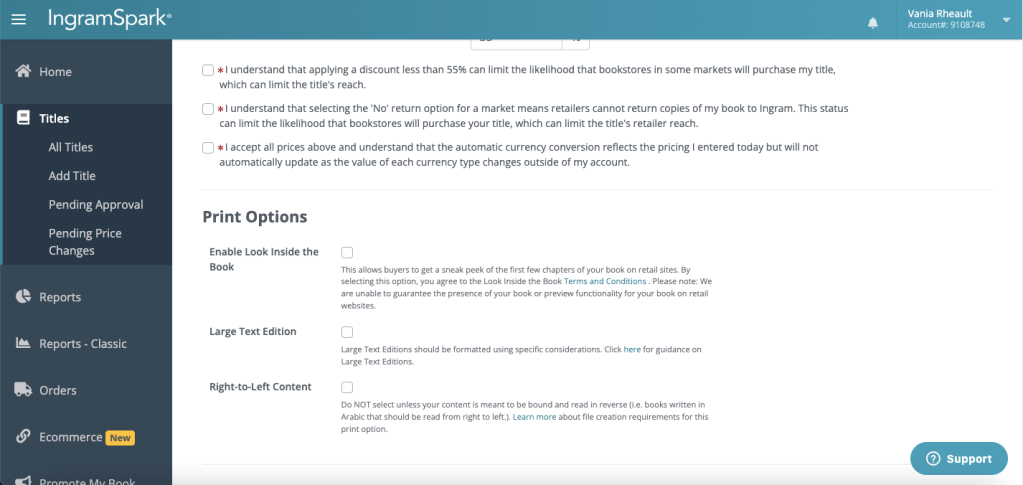
Go ahead and click that you agree on all the little asterisks and then go down to Printing Options. For those options, I only click on the Enable Look Inside feature. I figure since a reader can read 10% of your book on Amazon, I might as well give readers the same opportunity elsewhere. You can do large print, but KDP blocked my attempts as duplicate content so the only way I would do Large Print now is if I printed only to sell off my website. I would like to, some day, but I won’t be doing it any time soon. The right-to-left content is self-explanatory, so skip that, too.
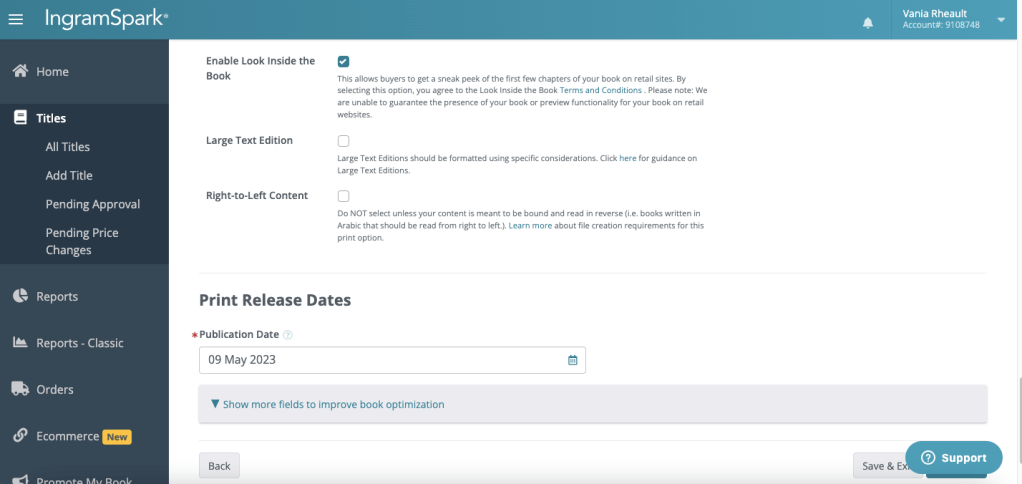
The last on this page is the Print Release Date. If you waited, this could have been a few months ago, so if you don’t remember, grab the date off your product page on Amazon.
When you’re done filling all that out, click Continue. It’s hidden here by the Support icon.
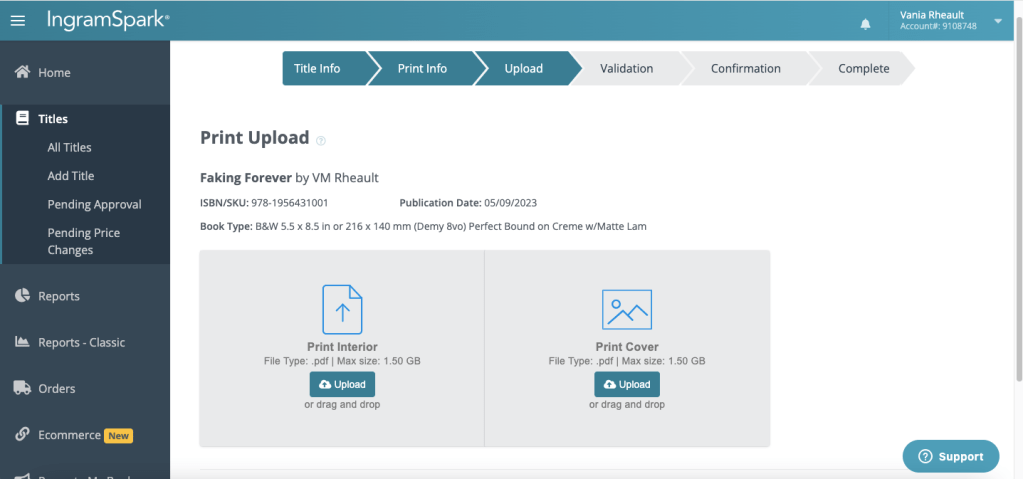
This is where you upload your files. You can either Drag and Drop, or Upload. This is also where the glitches happen, and we can see if IngramSpark is going to give me a hard time today. I don’t have a preference either way, drag and drop vs. uploading, and I’ve done it both ways.
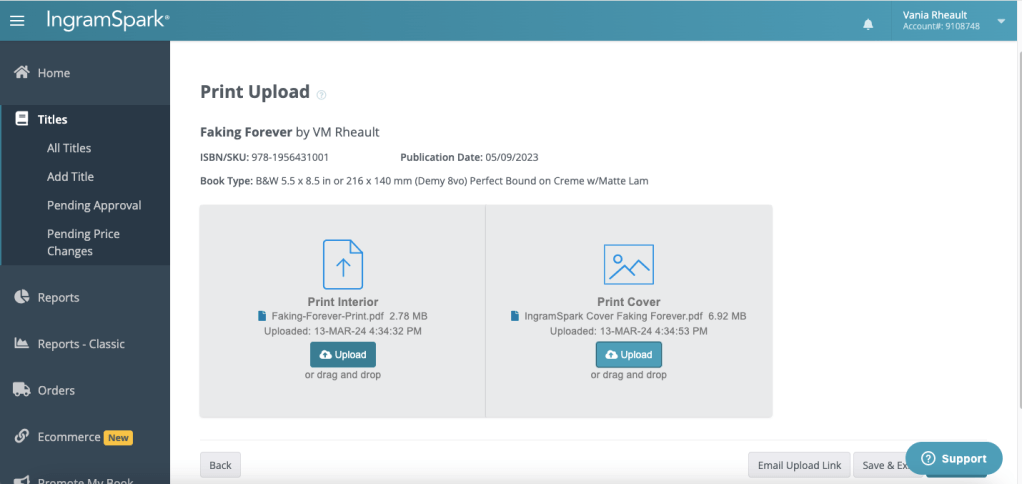
It looks like today they decided to be glitch-free, and you can see the dates and times of the uploads. I know from experience that if it doesn’t show dates and times, your files haven’t uploaded properly. You can try logging out and logging back in (save and exit first), clearing your cookies/cache, trying a different browser (Chrome vs. Safari, for example) or using an incognito window. I’ve tried all of those when IngramSpark has been a bear to work with and usually one of those will push the process along. I almost wish IngramSpark would have given me a hard time so you could see what it’s like, but then again, I shouldn’t be asking for trouble.
The email upload link at the bottom is for a cover designer or your formatter if they have your files. You don’t want to give them access to your whole account since you put your banking information into your profile, so use the email link if you had help putting your book together. Click Continue (that’s hidden under the Support icon).
The next page verifies your information. This can actually take a few minutes, so don’t panic if it makes you wait.
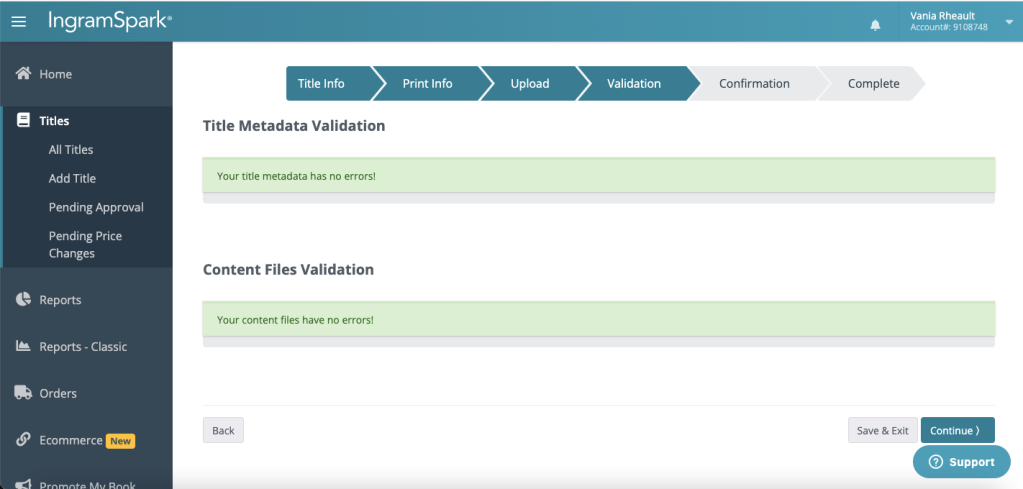
Click Continue.
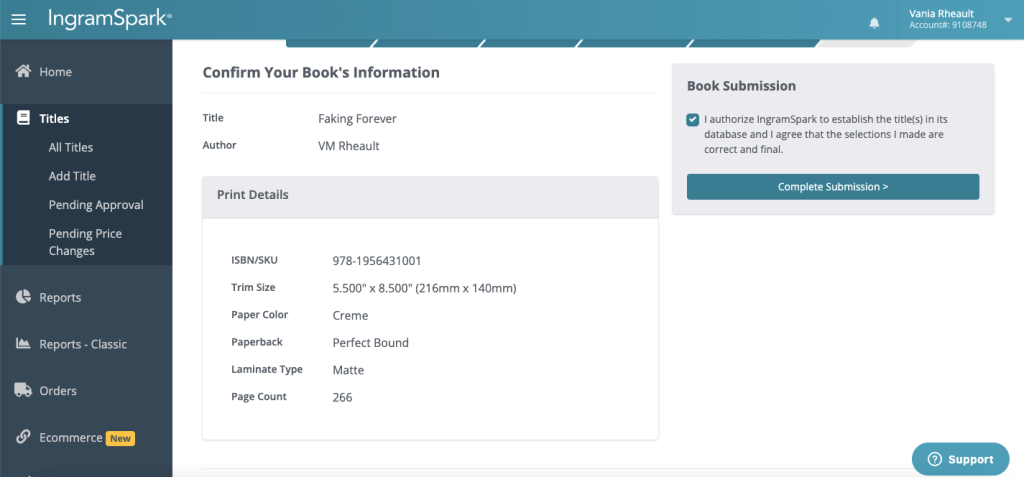
Confirm your book’s information and click the little square in the upper right.
Then you want to click on Complete Submission. This will also make you wait for a couple of seconds.
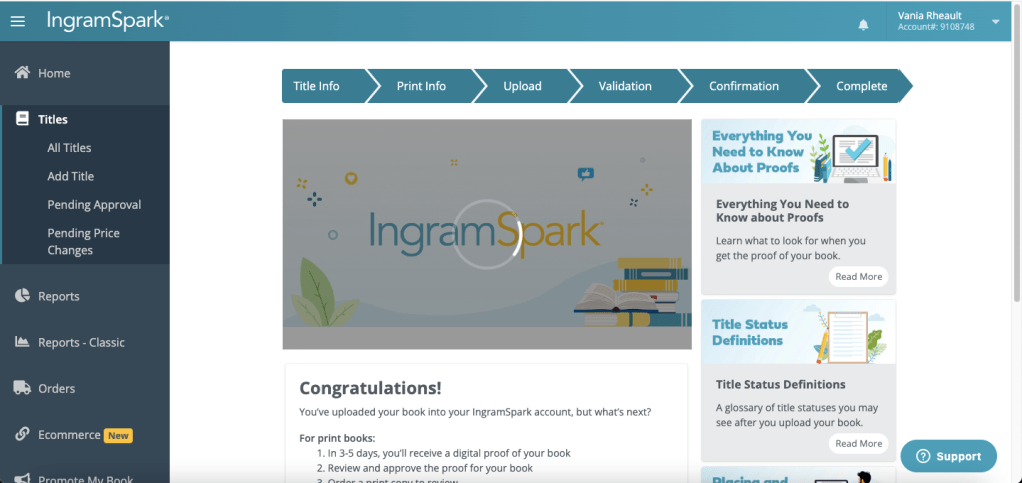
I haven’t submitted to IngramSpark for a bit, so this congratulations screen is new to me. Once you’ve submitted your book, they’ll email you as to whether you need to fix anything or if the eproof they send you can be approved. Because I always publish on KDP first and put my books through a rigorous proofing-the-proof process, I don’t order a physical proof through IngramSpark. Once the eproof (PDF) comes, I might scroll through it just to check out the cover, but honestly, I just approve it and move on.
There aren’t many times I submit a book where I don’t have to fix the cover in some way. Sometimes I don’t make the text on the spine small enough, or I don’t move the title and author name over, or whatever. If I’m dealing with a gradient, sometimes I don’t have it moved over enough so that’s flush with the spine. They’ll tell you in the email they send you what needs to be fixed, and then you just do what they say and resubmit the file. I’ll probably look over the eproof when I get it just to be sure I didn’t screw up somehow because I was distracted writing this blog post while I was filling everything out and submitting.
But that’s really all you need to do to publish with IngramSpark. The ISBN stuff is a hassle, and waiting for a couple of months after you publish to KDP first is annoying, but I use my ISBN both places and have never had an issue so I’m not going to fix what isn’t broken.
I hope this post was helpful and waylaid some of the fear. Like anything once you do it, the easier it becomes.
I wrote out this post long enough in advance that IngramSpark approved my files and they sent me an email saying I can approve the proof. This took about three days.
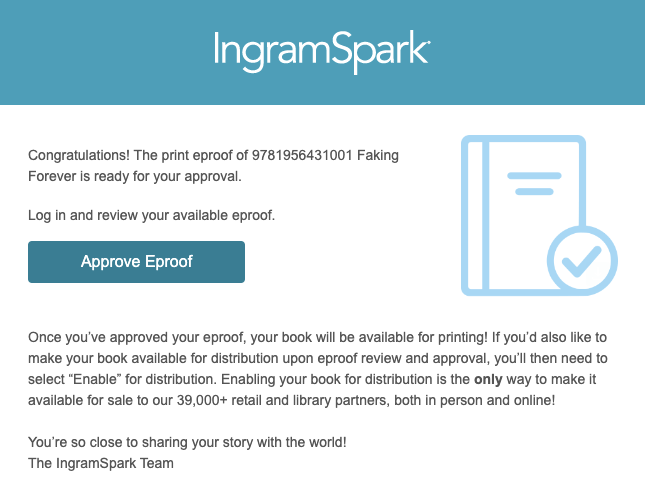
On Threads, someone was saying they were waiting weeks, but what can happen is you don’t get an email and your title needs to be fixed somehow. I’ll show you where you go to see the actual status of your book if you don’t get an email after a week of waiting.
Once you get your email, click Approve EProof.
IngramSpark will make you log in, so do that.
They’ll direct you to this screen:
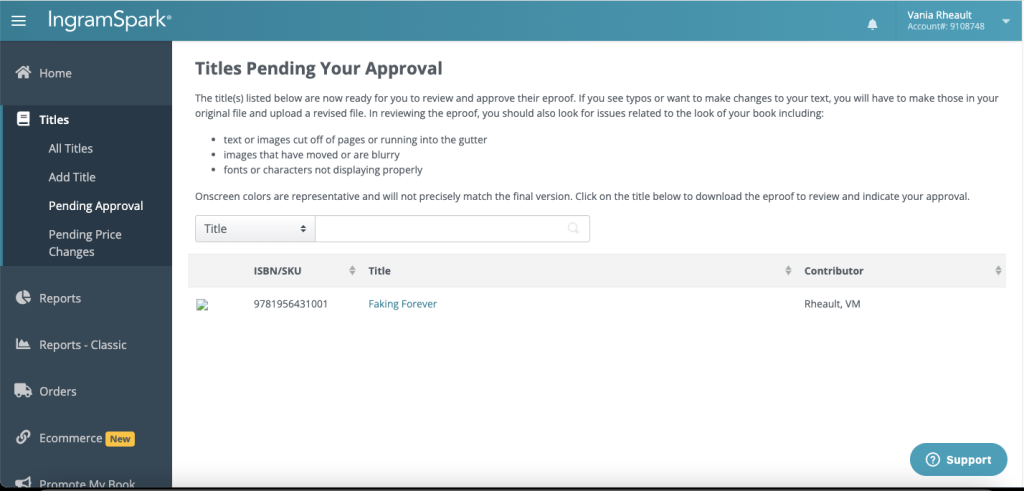
Click on the title of your book.
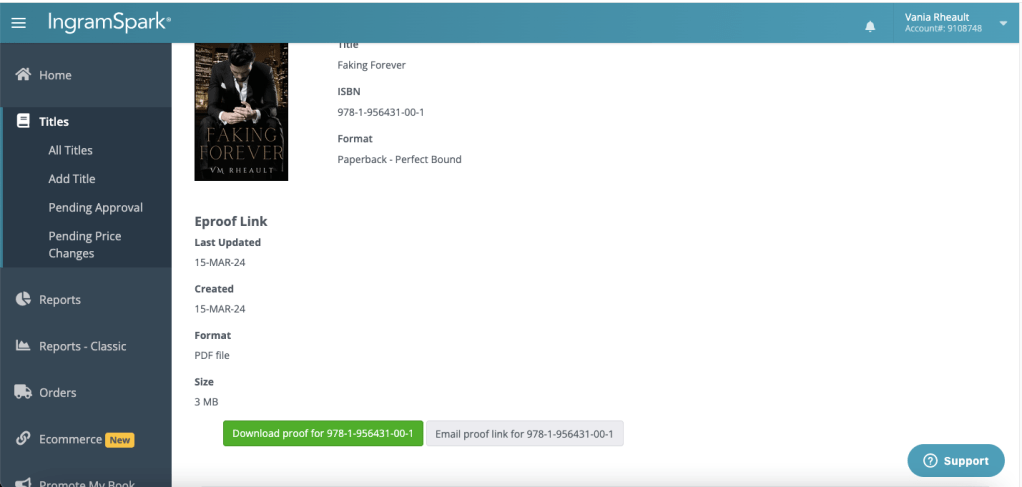
Scroll down until you see the green bar that says Download Proof for your ISBN.
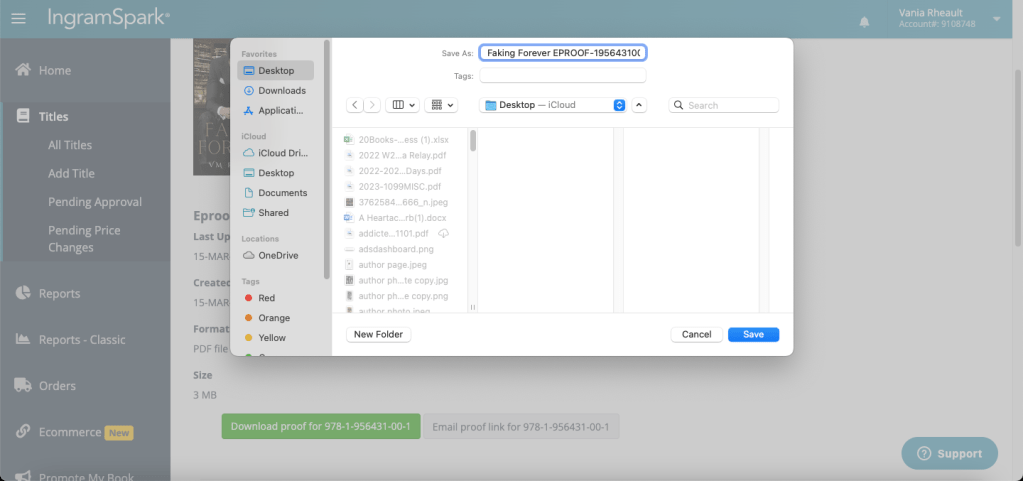
I save it using the title so I can find it later if I want it.
Open it up, and you’ll see they sent you the entire book. This certainly doesn’t take the place of looking at a paperback copy of a KDP proof, and if you do want to order a paperback proof, you should. I never do, and before I published this book to KDP, I think I ordered a proof about four times. IngramSpark’s printing isn’t that much different, and if it passed the IngramSpark submission process, then I know it will be okay.
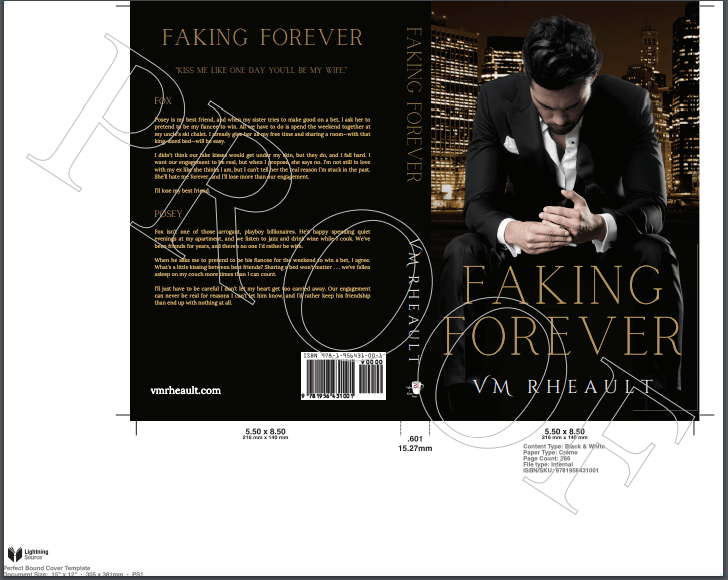
You can also see here that they did add the barcode for me, and they placed it where KDP puts theirs.
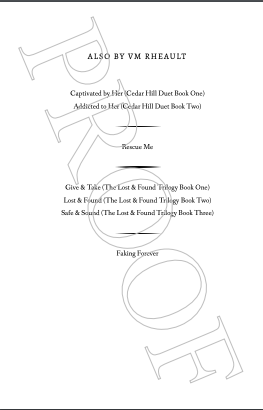
I scrolled through, and I notice I could have updated my Also By in the back of my book. I think fixing that and resubmitting will be too much hassle, and I’ll let it slide.
Once you know you’re happy with the proof, scroll down the page more.
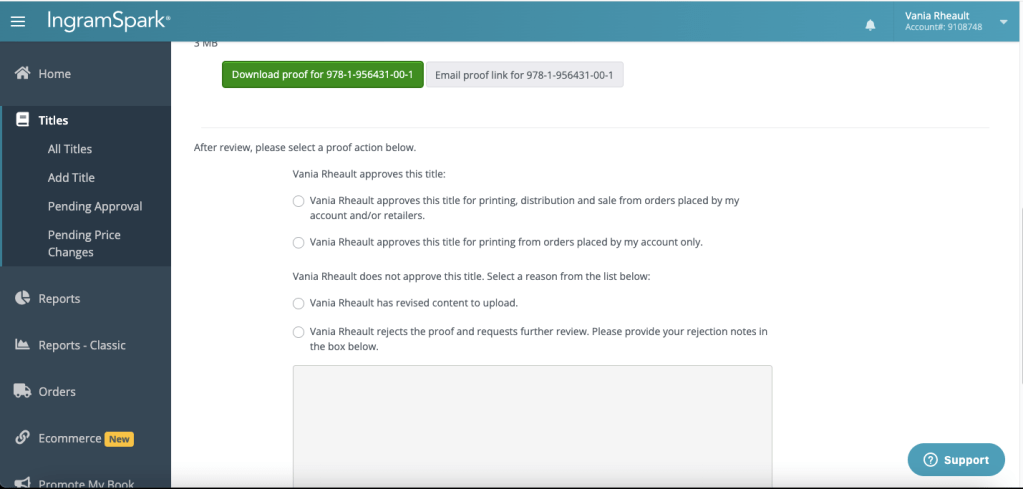
This where you approve or your title. If you decide to make changes, click the appropriate selection. I clicked the first because my book is okay to distribute. Scroll down more and click Continue.
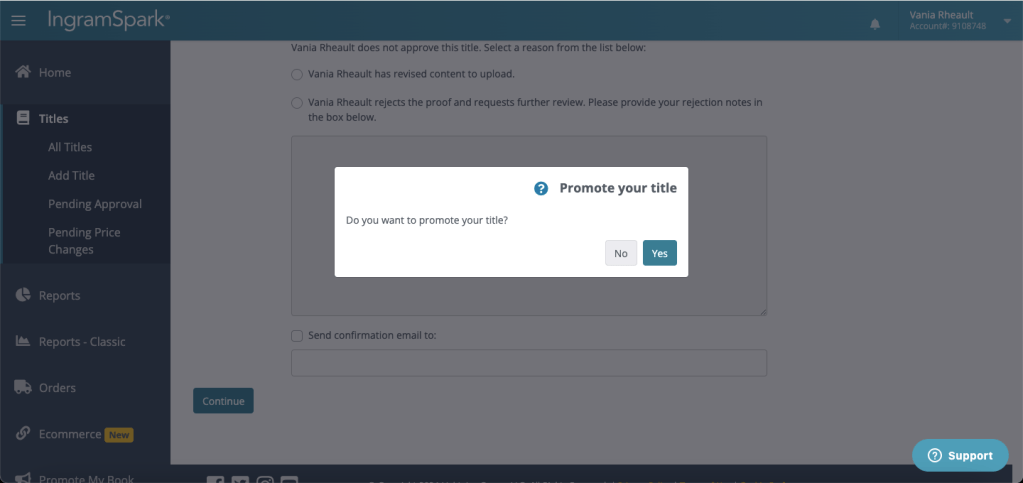
They’ll ask you if you want to promote your book. There’s a fee there, and I think the last I clicked it was $250.00. Apparently they’ll promote your book in the bookseller’s catalogue, and I did this for All of Nothing and didn’t see any ROI. But like all business decisions, it’s up to you. I’m going to click No.
When you click No, you’ll be sent this this screen:
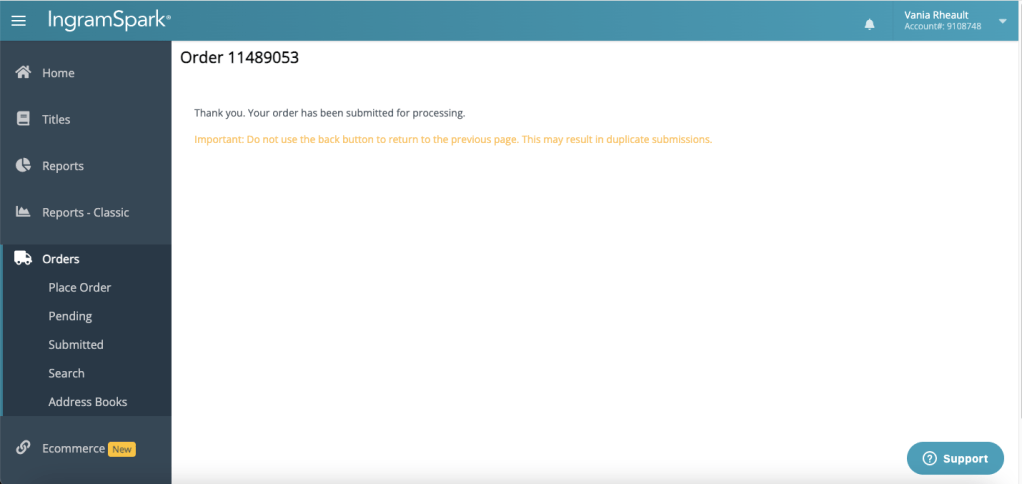
But in my experience, processing doesn’t take long–at least, not on the dashboard part of it. It can take a few days for your book to start popping up in the marketplaces. Since (again) I don’t care about that stuff, I don’t look, so don’t quote me on how long it takes.
If you click on Titles on the left, you can see that Faking Forever is already available.
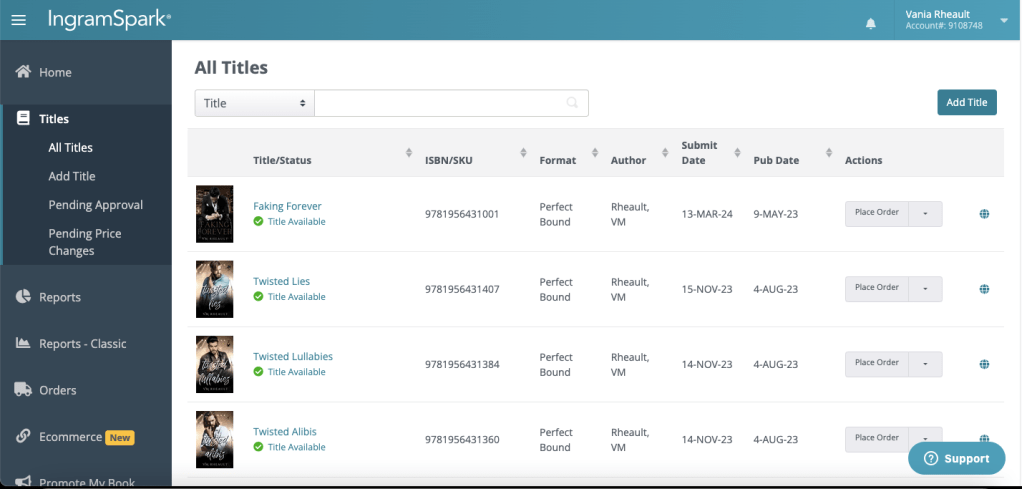
Titles and Titles Pending is also where you can look to find out your book’s status if you’re waiting for an email after you’ve submitted your book. A while back I resubmitted covers for my duet, and I messed up Addicted to Her. I didn’t get an email saying that I needed to fix anything, but I didn’t get an email saying that my book was ready for approval, either. If you’ve been waiting for email after submission and it didn’t land in your spam, always go to your dashboard and check on the title in question. That will give you the most up-to-date information. If your cover needs tweaking, it will tell you there. There are always ways around waiting–information is usually available if you know where to look.
Part of the reason I don’t order an author copy first is because I never see the option. I have no idea where to click to find a proof before publication. I must miss it every time, but for the life of me, I never see it. But, like I said, I’ve already seen a KDP proof a million times, so I’m okay not ordering one from IngramSpark. If you really want to see the quality, you can order an author copy for yourself, but I’m hearing IS has the same problems as KDP. Their printers are overworked and underpaid, and covers can be messed up, or your cover may be right, but there’s a completely different book inside. Some boxes have a mix of books–one erotica author, I think on Threads, said she got a box full of Bibles. All can I really think when it comes to this kind of thing is that the indie publishing industry is bursting, and POD–machines and workers–can’t keep up. So, if you’re ordering stock for an event, do it months and months in advance, not only to give the printers time to print and shippers time to ship, but also to give yourself enough time to reorder if your shipment’s damaged in any way. I know you have to be super organized to plan that far ahead, but it will save you a lot of headaches in the long run, I promise you that.
Since I was able to walk you through the approval process too, I think that concludes the IngramSpark tutorial. I hope it was helpful, and as always, there are no affiliate links in this post.
Good luck and happy publishing!
Quick links:
IngramSpark’s publishing guide: https://www.ingramspark.com/blog/how-to-create-a-print-book
IngramSpark’s distribution: https://www.ingramspark.com/how-it-works/distribute
IngramSpark’s Cover Generator https://myaccount.ingramspark.com/Portal/Tools/CoverTemplateGenerator
Lightning Source’s Cover Generator
https://myaccount.lightningsource.com/Portal/Tools/CoverTemplateGenerator
IngramSpark’s Guide to Cover Design https://www.ingramspark.com/master-your-book-cover-design
Dave Chesson’s Barcode Generator https://kindlepreneur.com/isbn-bar-code-generator/

 Vania Margene Rheault